If you get your gaming done throughSteam, you might be surprised to find out about some of the options hidden away in menus or generally unknown. For this list, we’re going to be sharing some great tips for Steam, and for Steam Decks.
Steam Link
Steam Link is great for when you can’t be right next to your PC. It’s essentially a streaming service that will directly stream games from yourPCto any compatible device - phones, tablets, smart TVs, and even VR headsets. As long as your device has the Steam Link app available, you can stream over your home network. This also opens up the option to play with friends without owning the game they’re playing. It’s a fancy way of sharing experiences together while in different places.
Steam Points
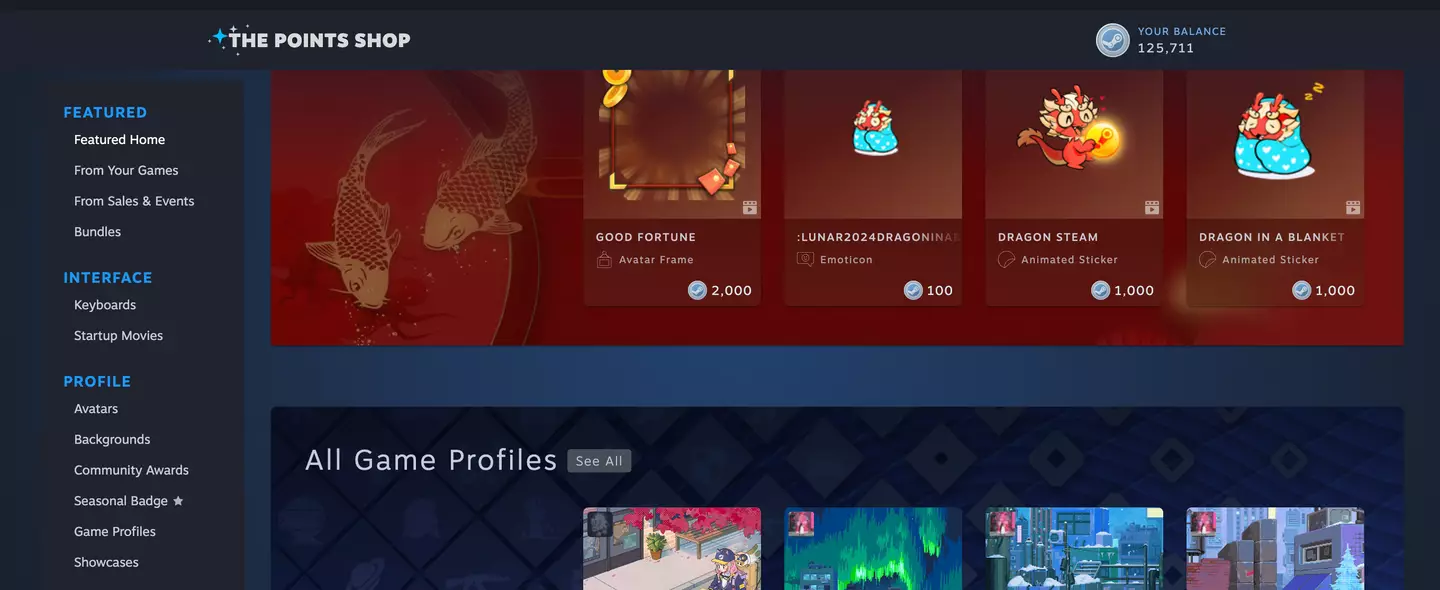
Whenever you buy games on Steam you are rewarded with Steam Points, these are redeemed in theSteam Points Shop. It equates to around 127 points for every £1 spent, or 100 points for $1. You might have seen a points total appear after you’ve used the Steam checkout and don’t know what you can get with these points. Well, you can get quite a lot; avatar icons and animated icons, emotes for the Steam chat client, background images for our profile, and badges for particular games. Whenever you enter the points shop you can choose from seasonal content around big holidays, or choose according to your favourite game.
Advert
Advert
Steam
Screenshots
A nice simple tip here for those who love to capture their gameplay or take advantage of in-game photomodes. When you’re playing, you don’t have to worry about using a secondary app or program to capture your screenshots. Steam has it built-in. It’s as easy as tapping the F12 key and it will store your images locally. You can also select the option to upload the captures to the Steam cloud which makes them accessible from any device with a web browser.
Personalise your profile
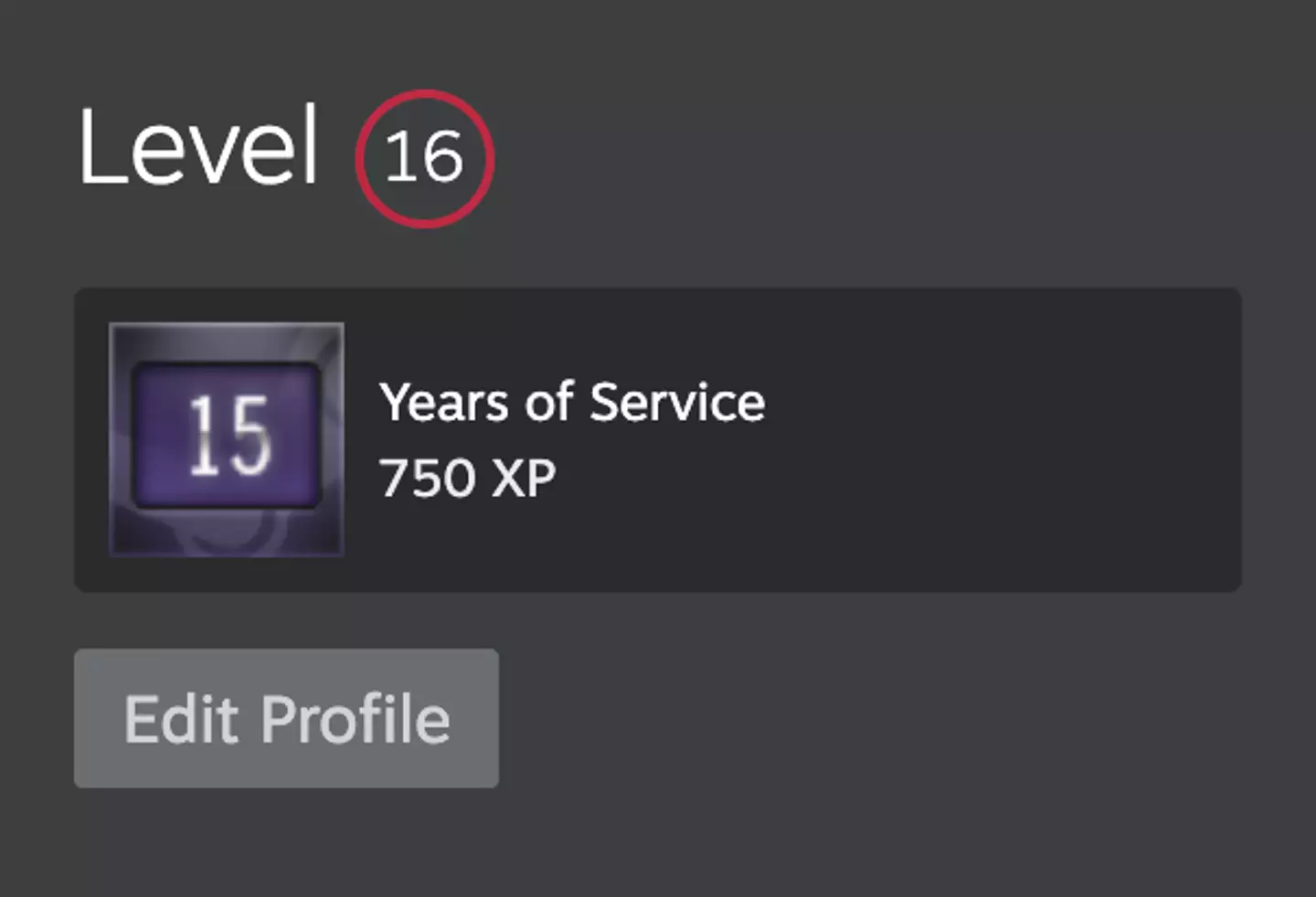
Your Steam profile is highly customisable nowadays. It’s not just your username and avatar image that can be changed. You can change everything from the background image to the colour themes. Everything can be found under ‘Edit Profile’ which sits under your ‘Years of service’ badge on the profile page. Get into these options and see how you can change the look. You can choose to display certain badges, or change your theme to match your favourite games.
Advert
Advert
Steam
Game collections
Overlay
Advert
Advert
Steam
File transfer for Steam Deck
This is a great option forSteam Deckowners and you’d be forgiven for not even knowing it exists. Let’s say you haveElden Ringon your PC and you want to to play it on your Steam Deck. You don’t need to download the game directly from the Steam servers, you can use a file transfer option that uses your local home network. All you need to do is turn on your PC and open up Steam, then head into your Library on the Deck to findElden Ring. You’ll see an option to transfer the files and this is significantly faster than downloading the game again.
Big Picture mode
Steam Big Picture mode has been around for quite a while but it got an overhaul with the release of the Steam Deck. This mode is a controller option to control Steam as if it was a console interface and it’s designed with TVs in mind. So, if your PC is connected to your big screen TV, this will remove the need for a keyboard and mouse. To get here, select the Steam option in the top-left corner and start up Big Picture. Once here you can even customise your controller with shortcut commands to make everything a bit easier.
Topics:PC,Steam
