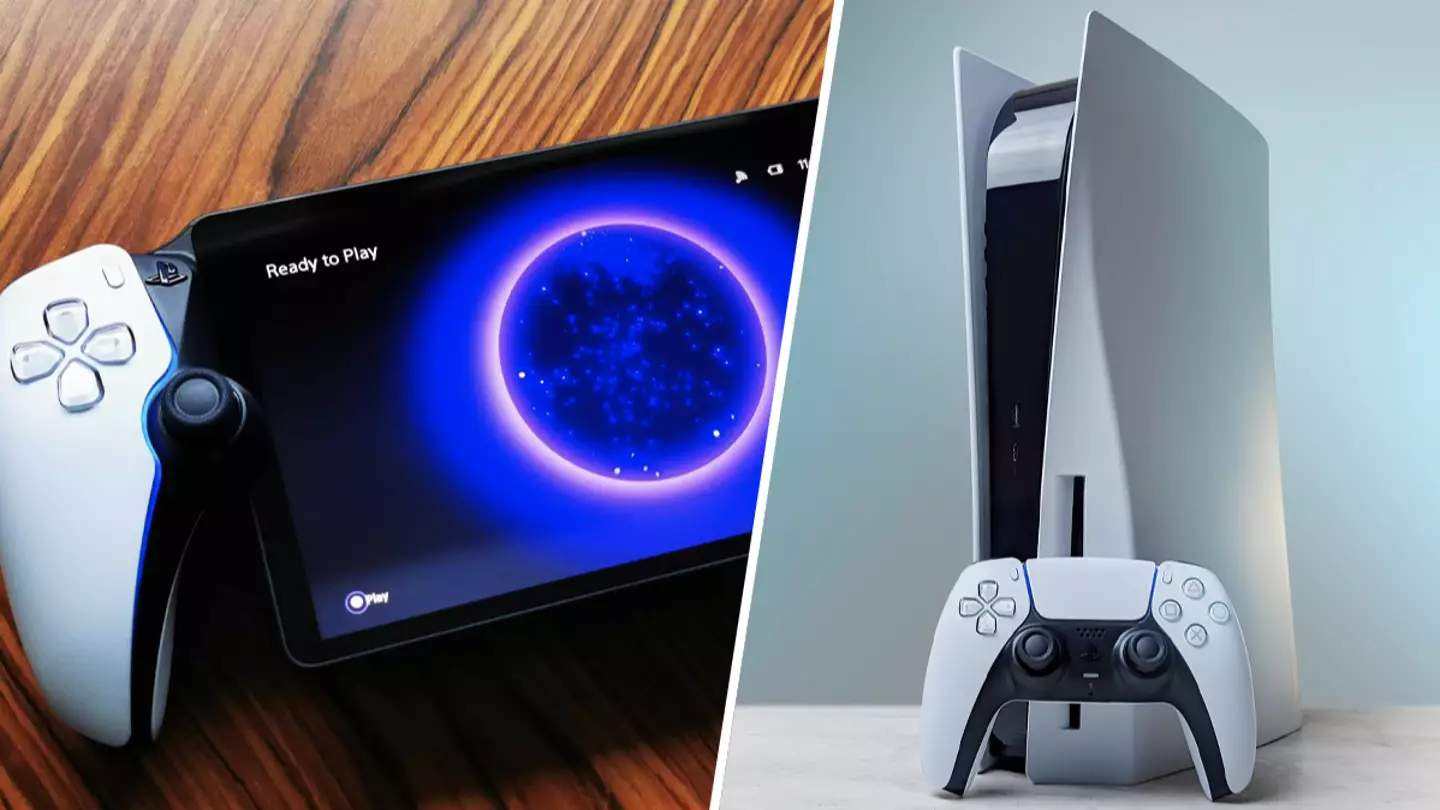
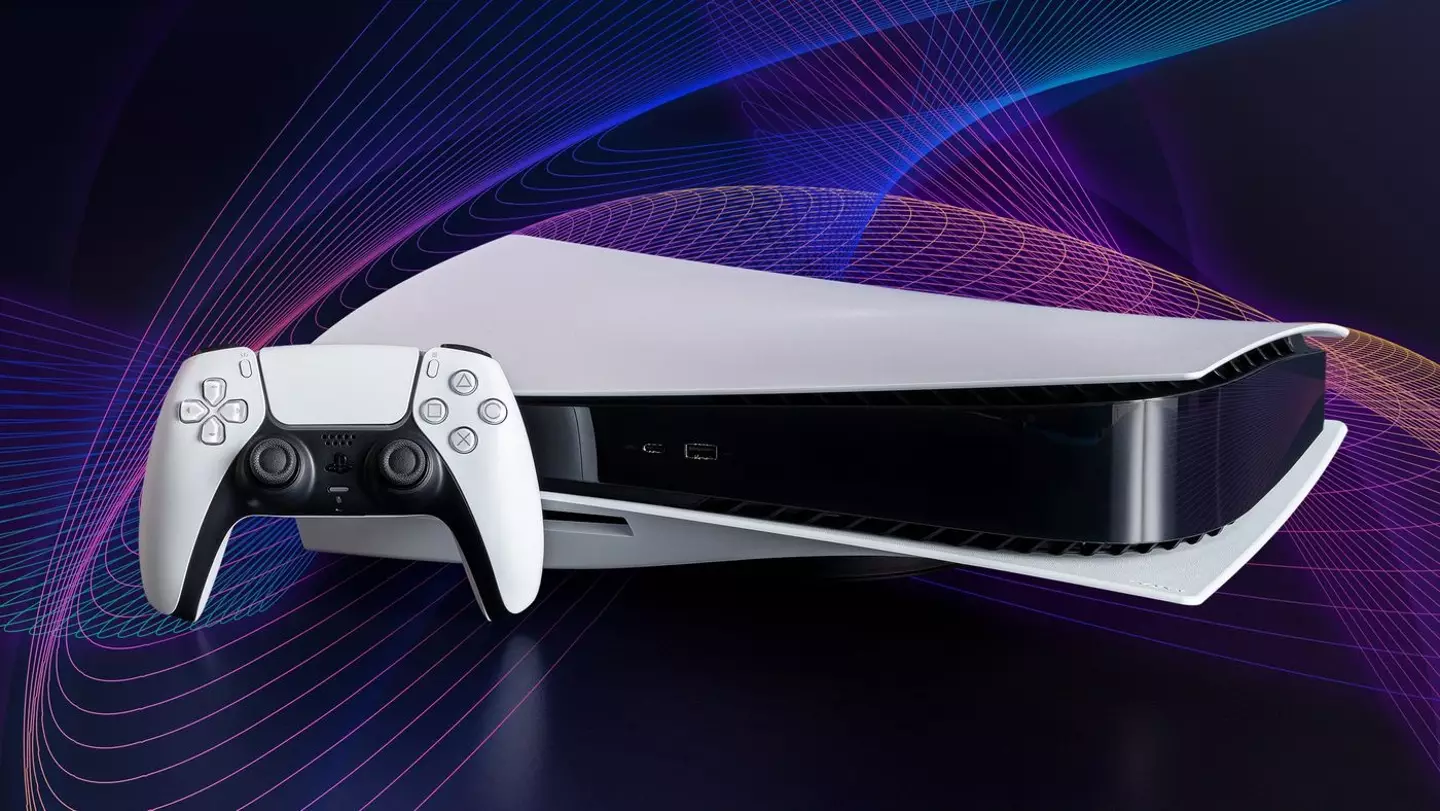
It doesn’t matter if you’ve owned a PlayStation 5 since launch day, or whether you’ve recently got your hands on Sony’s latest console, there are a few tips and tricks you can employ to further enjoy your experience. Some of these fancy features are turned on right out of the box, but for some others you’ll need to delve into a few menus.
Disable trophy screenshots/videos
The PlayStation 5 has the ability to automatically capture screenshots and videos whenever you unlock a trophy. While this is a nice touch, it can end up using a lot of your storage space, cluttering it with screenshots you may never look at. Thankfully, you can turn this off. After going into the ‘Settings’ menu, find ‘Captures and Broadcasts’ and then ‘Trophies’, now you can switch off this option.
Advert
Advert
PS5
How long have you been playing?
Change controller settings
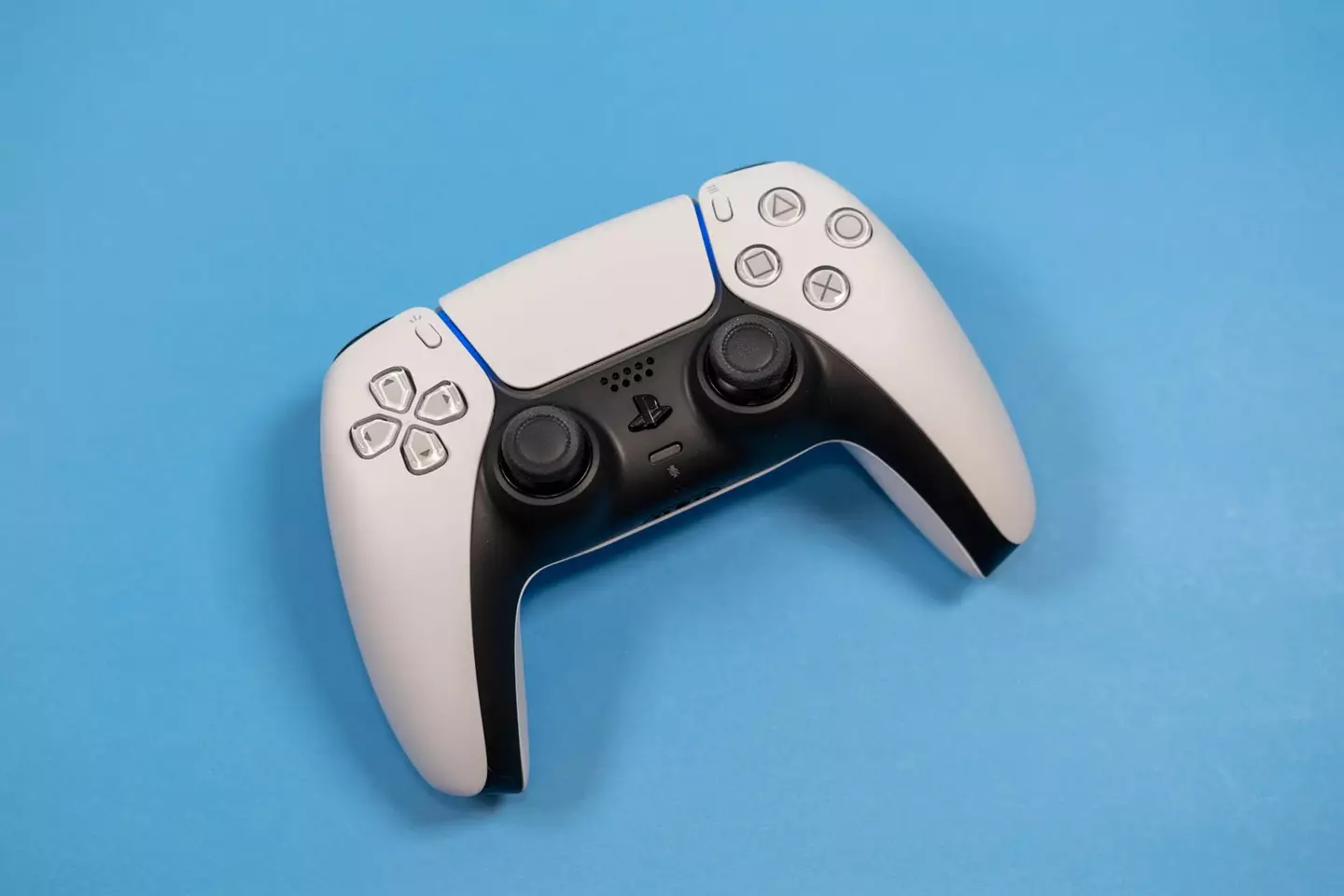
TheDualSenseis a wonderful controller this is an impressive piece of hardware on its own. With the now traditional controller speaker for a more immersive experience, the controller also boasts triggers that react to certain aspects of games, like the tensing of a bowstring. As it comes out of the box, everything will be turned on and ready to go, but if you don’t like something, you can change anything from the trigger effects to the vibration strength.
Advert
Advert
Just head into the ‘Settings’ menu, then into ‘Accessories’ and ‘Controllers’. Here you can fiddle around with different features until the DualSense is set up perfectly for you.
DualSense
Game presets
Advert
Advert
You can get to this menu via ‘Settings’ > ’Saved data’ > ’Game/App settings’ > ’Game presets.’ This is a lovely touch that will hopefully save you some time with new releases.
Remote play
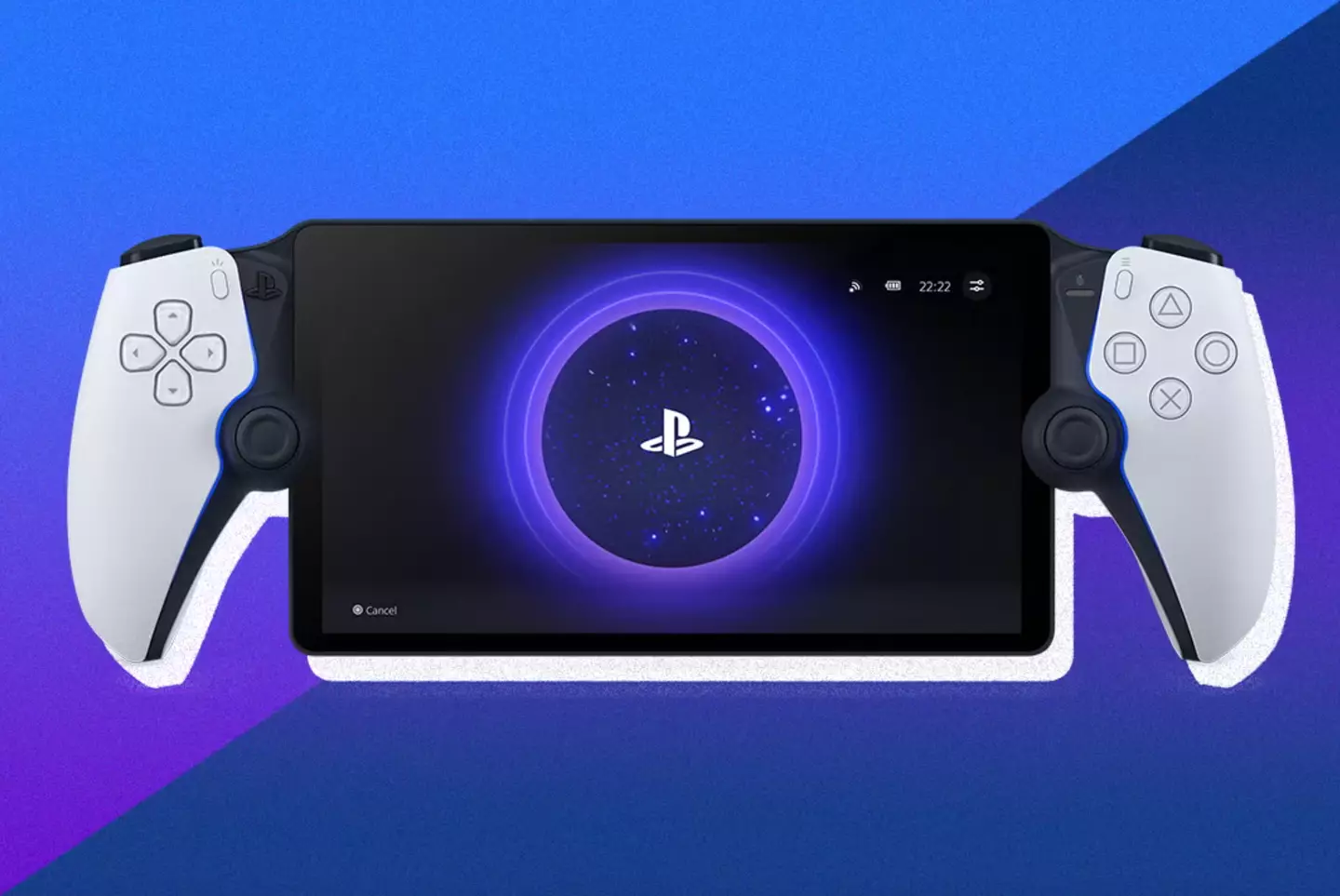
Sometimes you want to play the latest games and you can’t get the TV time you need. Perhaps the kids are watchingBlueyand you want to playMarvel’s Spider-Man 2. Well, just turn on remote play and you’ll be able to stream your game to a PC, laptop, or even a phone. You can even use a PS Vita if you have one knocking around. Perhaps you have a fancy new PlayStation Portal.
To enable remote play, follow the path of ‘Settings’ > ’System’ > ’Remote play’ and you’re ready to go. You will need a reasonable speed for your internet, but if you’re in another room in your house, you should be fine.
Advert
Advert
PlayStation Portal
Combine with the PS app
I don’t know what I’d do without thePlayStationphone app. Well, I do, I’d use a controller and turn on my PS5. However, with the app, you can access many features on your console without turning it on, or even while you’re away from home.
The app allows you to add or remove friends, see the latest news, shop thePSN store, and even select games for your console to download. This latter feature is super helpful if you aren’t near your console - you can buy a new game and set it to download so that when you have time to play, it’s all ready to go. You will need to keep your PS5 in rest mode for these interactive features.
Turn off pop-up notifications
Pop-up notifications can get a little annoying after a time, especially when your friends are signing in and out of PSN. It’s particularly frustrating during a film or when you’re focused on a game. These pop-ups can be easily turned off, or reduced, depending on your preference.
Advert
Advert
PlayStation Game Help
Get game help
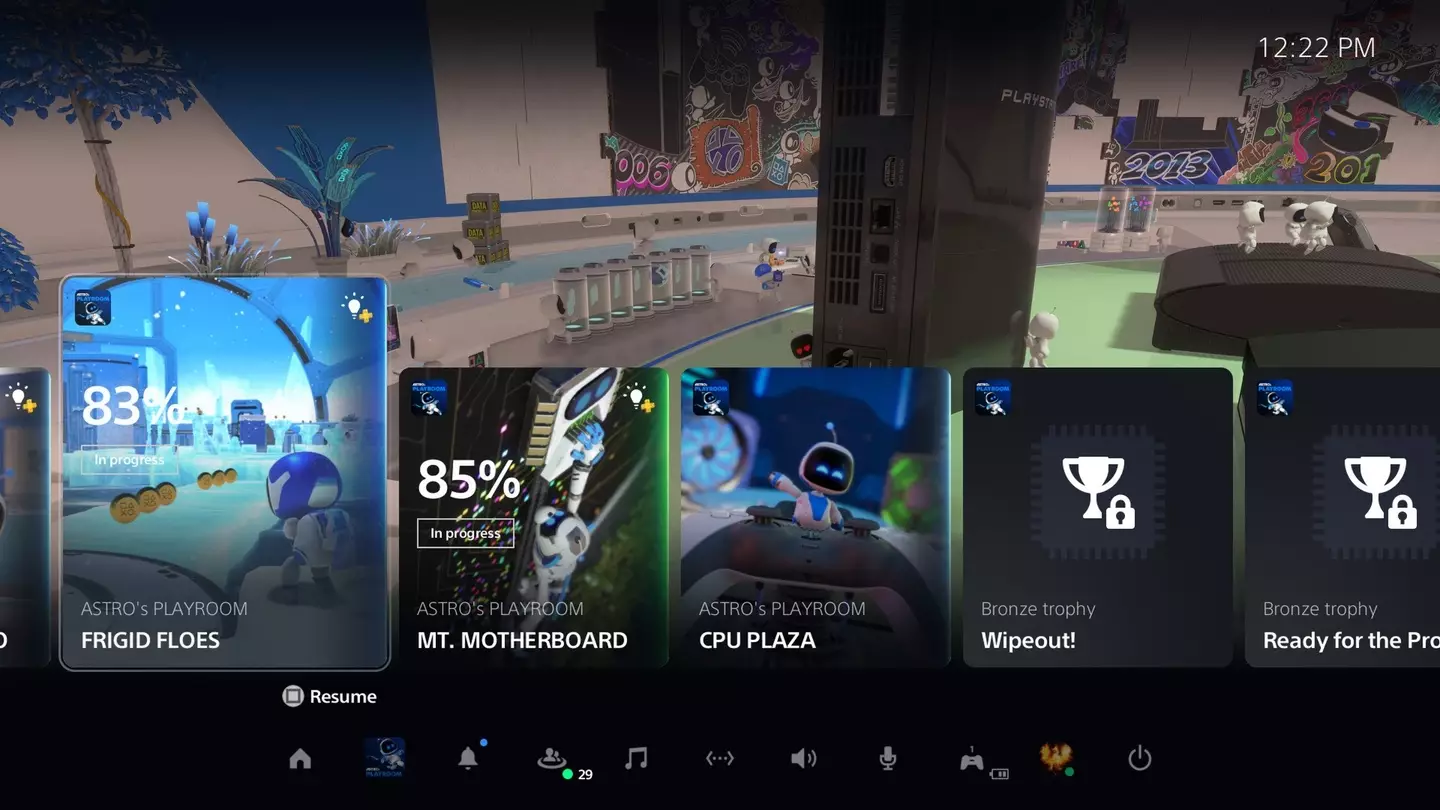
A feature baked into many PlayStation 5 games is ‘Game Help’. This is a delightful option to see videos and images guiding you to completing certain in-game tasks. All you need to do is press the PS button in the centre of the DualSense and you’ll find a selection of index cards for where you are in the game.
For example, if you’re in chapter six ofFinal Fantasy VII Rebirthand you open this menu, you’ll see helpful hints about how you can progress in that chapter. These are usually pretty spoiler-free, and, once a card is selected, they can be pinned to your screen making it super simple to follow along and complete the task.
Topics:PlayStation,PlayStation 5,Sony
