It doesn’t matter if you’ve owned an Xbox Series X since launch day, or whether you’ve recently got your hands on Microsoft’s latest console, there are a few tips and tricks you can employ to further enjoy your experience. Some of these fancy features are turned on right out of the box, but for some others you’ll need to delve into a few menus.
Use the mobile app
The first thing you need to do is download the Xbox app for your phone, you can actually set up your newMicrosoftXbox using the app, which is very helpful. It’s a great piece of software for keeping on top of friend requests, activating downloads for your console, or even downloading your screenshots to your phone to post them on social media. You can even use the app to stream games to your device, we’ll have more on this below.
Advert
Advert
Controller
Set up your controller
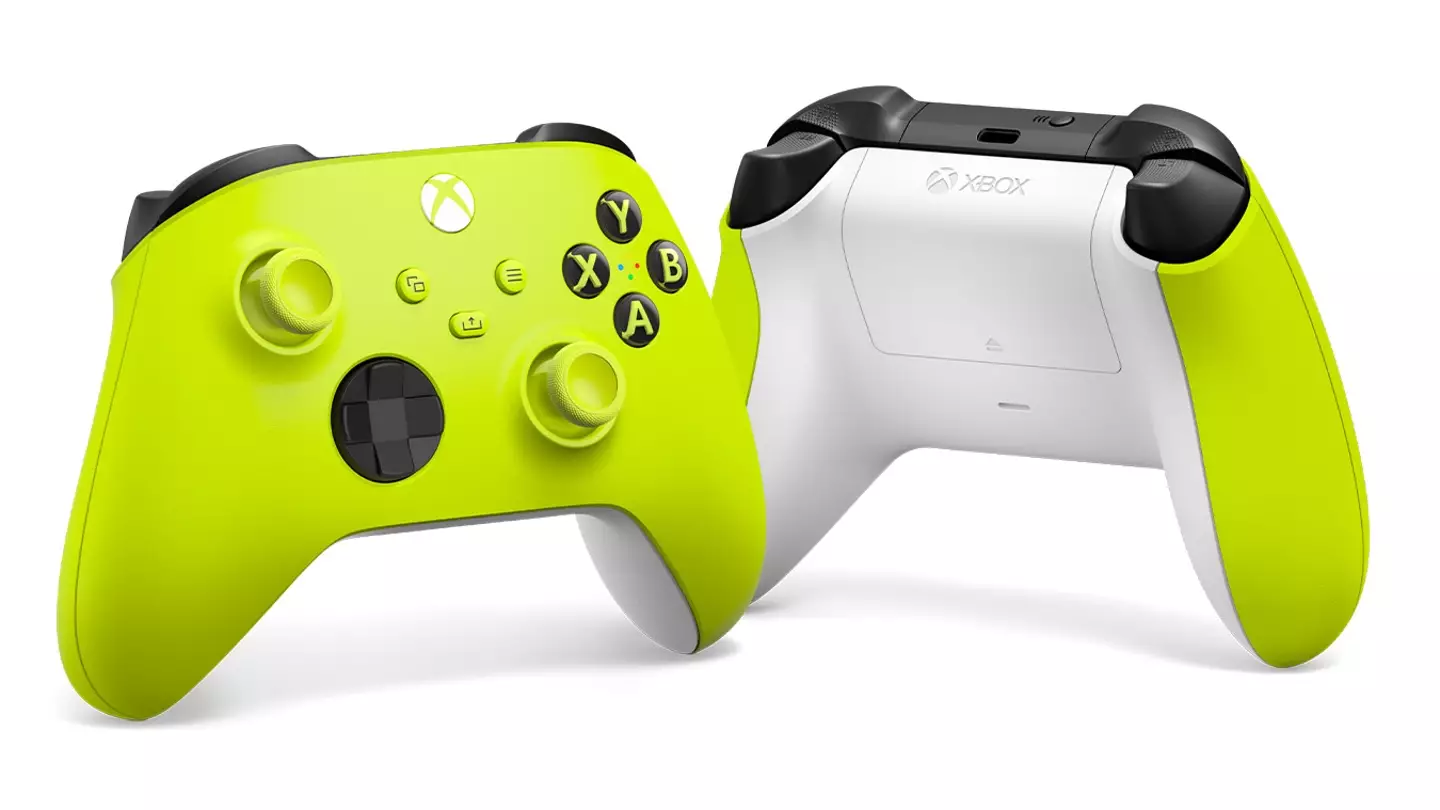
While the Xbox controller isn’t as fancy as PlayStation’s DualSense, you might need to customise your experience anyway. The controller can be completely overhauled, reassigning buttons for different uses, which is great for basic accessibility.
On top of that, you’ll also be able to set up controller profiles which can be changed on the fly, saving specific profiles for shooters, or racing games. To play around with your controller simply follow this path, ‘Settings’ > ‘Devices & Connections’ > ‘Accessories and Configure.’ You can also use your old controllers if needed.
Remote play
You might want to set up remote play, especially if there’s always a fight over who gets to use the TV. Thankfully, it’s easy to get yourself set up to play on your phone or tablet.
Advert
Advert
Lastly, open your Xbox app on your device and tap ‘My Library’ then go into ‘Consoles.’ From here, just tap ‘Connect’ beneath your console of choice and you’re ready to play.
Microsoft rewards
Advert
Advert
These points slowly add up and can be redeemed for money off vouchers, or store credit, or if you’re feeling generous, you can donate to a charity. It can take a while to build up, but the occasional reward for playing games normally is lovely.
Home Screen
Customise your home screen
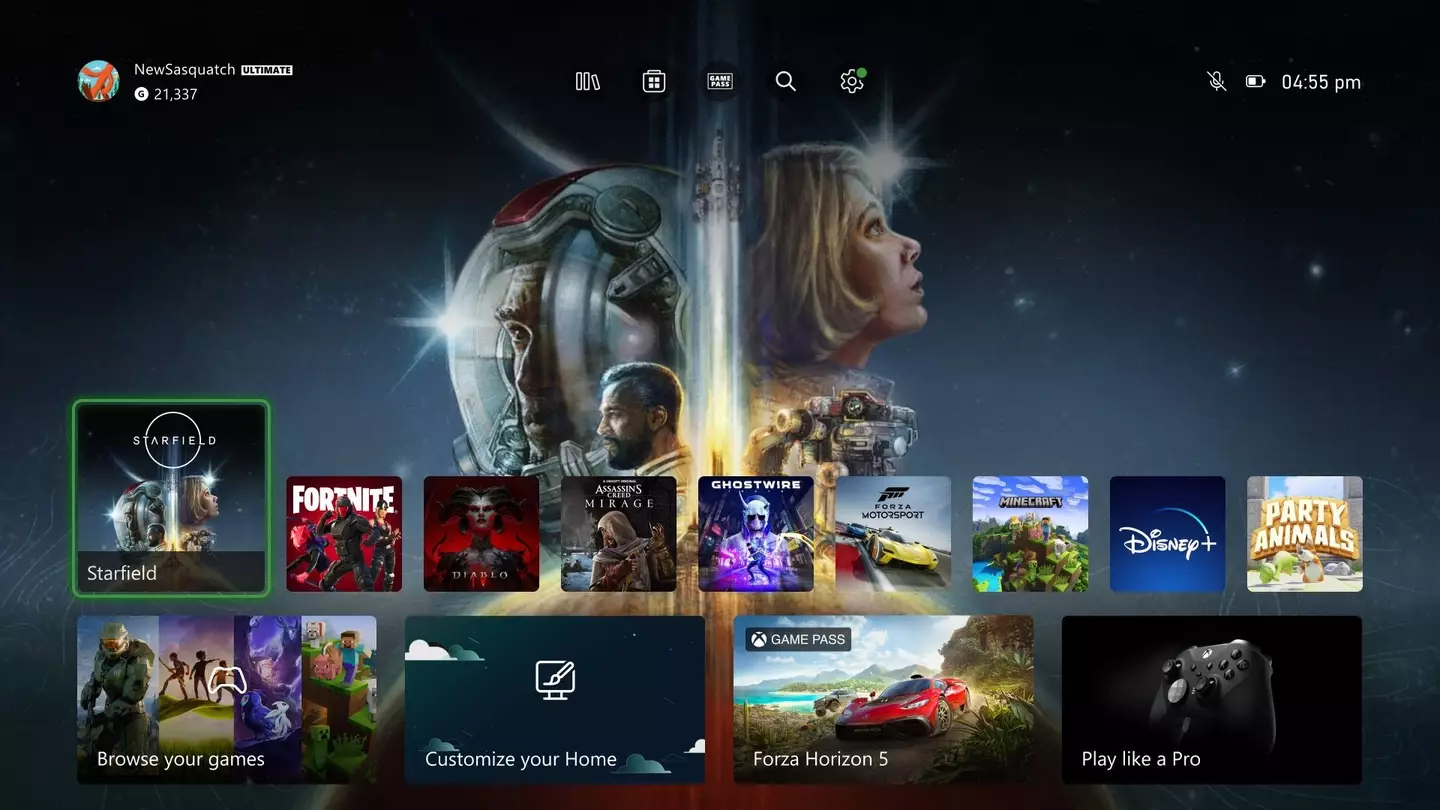
YourXboxcan be personalised and set up exactly how you want. You can move the app and game tiles around, change the background image, and set up dark and light mode themes - it can even change depending on the time of day.
Advert
Advert
To get started, press the View button, which is two little squares overlapping, and you’ll find the ‘Customise Home’ settings menu. From here, just have a browse through the options and decide how you want things to look - maybe you wantHalo Infinitefront and centre.
The most important option is ‘Customise the Guide’ which allows you to overhaul everything you see when you press the Xbox button. Get fancy, move things around, make it yours.
Personalise your capture settings
Advert
Advert
The biggest tip is to choose how your share button works - whether you want to hold it to capture a still image, or capture with a longer press.
Upgrade your storage space
Upgrade
Stop annoying pop-up notifications
Does anyone actually like pop-up notifications? If your answer is, ‘Of course not’, then you may want to turn them off. Nobody wants to be distracted when watching a film or when you’re deep into a game. To turn them off, simply follow this path once you’re in ‘Profile & System’: ‘Settings’ > ‘Preferences’ > ‘Notifications.’ Now select the option best suited for you.
Topics:Microsoft,Xbox,Xbox Game Pass,Xbox Series X
